


Preview
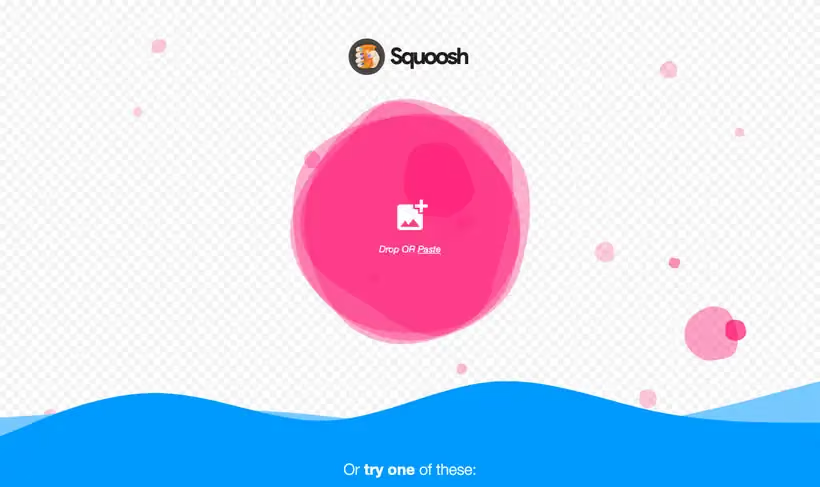
What it is.
Compress an unreleased screenshot without handing it to a stranger. Images never leave your device, because Squoosh does all the work locally in the browser.
A side-by-side preview keeps the quality honest. Push it down until the difference shows, back off one step, and convert to WebP or AVIF in the same pass.
What you get.
- Local processing, so nothing is uploaded anywhere.
- A side-by-side view with file sizes, so you can see what the compression cost.
- WebP and AVIF conversion with quality control per format.
- Resizing in the same pass, which is where most of the saving comes from.
How to set it up.
Open the app and drag the image in, then check the original file size shown on the left.
Pick WebP on the right panel first, since it is the widest safe win for a marketing site.
Drop quality until the preview shows a difference, then raise it one step and export.
Resize in the same panel to the largest size the page renders, since an oversized hero is wasted bytes.
Rerun PageSpeed Insights on the page after replacing the images to confirm the change landed.
Pricing Plans
Squoosh
$0
runs in the browser, no account, source on GitHub
Use cases
Compress an unreleased screenshot
Process it in the browser so the image never leaves the laptop.
Choose the quality setting
Compare the two versions side by side and stop where the loss starts to show.
Convert a hero image
Export to WebP or AVIF with the quality you picked instead of a default.
Best for
Compressing confidential assets
Local processing means an unreleased screenshot can be compressed without uploading it to a stranger's server.
Fixing a slow page fast
One oversized hero image is the usual cause, and this turns it into a two-minute change.
Converting to modern formats
WebP and AVIF output with a visual check, so you can see what the compression cost before it goes live.
Open the tool
Opens on Google in a new tab.