

Key Takeaways
- You download these, you don't build them. Each one is a finished file you load into an automation tool, connect to your accounts, and run.
- Nine of the 12 use tools you probably already pay for. Apollo, HubSpot, Slack and Google Sheets between them cover nine, so setup is mostly logging in.
- Start with the job-change tracker. It only reads data and saves nothing, so if you set it up wrong, nothing in your systems changes.
- Failed-payment recovery is the quickest win. It's a switch inside Stripe, there's nothing to build, and Stripe reports how much money it got back.
- Replace the numbers before you turn one on. Six arrive with a lead score or a wait time that the person who built it chose, not you.
- Run one contact through before you run a full list. It's the only way to see a wrong setting before it reaches thousands of records.
Sales workflow automation means letting software do a repetitive sales job for you, like finding contacts or chasing trial users. You don't have to build these from scratch. The 12 below are finished automations you download for free, connect to your own accounts, and switch on.
What These Workflows Are and How You Run Them
A sales workflow automation is a set of steps that runs by itself. Something happens, like a form getting filled in, and the software carries out the next few steps without anyone touching it. Marketing has its own version, covered in our guide to marketing automation workflows.
That might be: look the person up, score them, add them to the CRM, tell a rep in Slack.
You don't have to build the steps yourself. People publish finished ones, and the 12 here come free from The GTM Exchange library of workflow templates.
Ten of them are built for n8n, a tool that connects your apps and runs steps in order. You can install n8n on your own server for nothing, or pay for their hosted version.
Getting one going means downloading the file, opening it in n8n, and typing in your logins for the tools it uses.
The other two aren't files at all. They're settings already inside HubSpot and Stripe, so if you pay for either one, turning it on is a checkbox.

Every page in the library tells you the same four things before any explanation: which tools it needs, what triggers it, what it costs to run, and when it was last updated. That top row is how I decide whether to keep reading.
I went through the library looking for the sales ones and kept these 12.
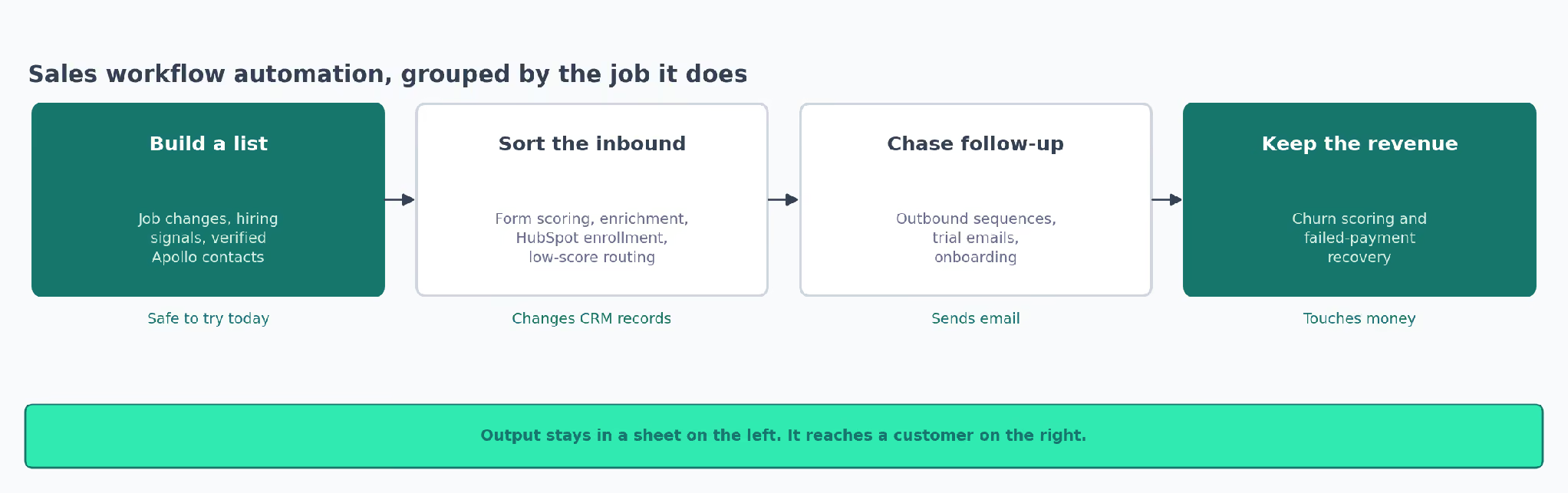
They're grouped below by the job they do, because that's how the work turns up. You need a list, or the inbound sorted, or a trial is about to end.
The order inside each group follows one thing: what a workflow writes to decides how careful you need to be. A workflow that only fills a spreadsheet can be undone by deleting the spreadsheet. Emailing your customers cannot.
Sales Workflows for Finding and Enriching Leads
These three go and find people who might buy from you, and put them in a spreadsheet. That's where they stop. None of them contacts anyone, so if you get the settings wrong you lose an afternoon and nothing else.
That's why I'd learn on these three first, before anything that can reach a customer.
| Workflow | What tells you to reach out | How long that reason lasts |
|---|---|---|
| Job-change tracker | Someone you know started a new job | A few weeks after they move |
| Hiring-signal search | A company is hiring the role you sell to | About a month, then the job is filled |
| Apollo contact list | A rep approved the contact by hand | Re-run it on accounts you last touched a quarter ago |
1. Track When Your Contacts Change Jobs
When a happy customer moves to a new company, they become your warmest lead. They already know your product works, and people in a new job get to choose new tools in their first few weeks.
The problem is finding out. Most of the time you hear about it months later, if at all.
The Airtop template checks LinkedIn for you. It reads the feed showing when your connections change jobs.
For each person it pulls out four things: their name, their new job title, a link to their profile, and whether they work in sales, marketing or something else.
It's four steps long and it doesn't save anything. You run it, you read the list on screen, and nothing in your CRM changes. If you want it saved, you add a step yourself.
Airtop is the paid service doing the LinkedIn reading. The template is free, the Airtop account isn't.
Where It Fails
- It returns five people per run. If you have thousands of connections, treat one run as a sample.
- Airtop charges per run. Budget for the service even though the file costs nothing.
- It reads LinkedIn, which LinkedIn's terms don't allow. Ask your legal team before you set it to run on a schedule.
2. Find Companies Hiring for the Role You Sell To
If a company is advertising for a demand gen manager, two things are true. Someone approved the budget, and right now nobody is doing that job. Both make a much better reason to call than "you look like our other customers."
Yaron Been's template turns that into a list. You fill in a short form with a job title, a city and a country. It then goes and collects recent job adverts matching that, tidies them up, and writes them into a Google Sheet.
Bright Data is the paid service that collects the adverts. You don't need to understand it, but you do pay it per advert it returns.
The form is the useful bit. Once it's set up, someone who has never opened n8n can run a search themselves. And because you searched by city, the list is already split the way territories usually are.
I'd keep the job title on every row. It's the reason you're calling, and I'd forget it otherwise.
Where It Fails
- Bright Data charges per record. Keep the search narrow while you're testing.
- A job advert doesn't tell you who signs. You know the company is hiring. Finding the budget holder is a separate job.
- Results come back slowly. The workflow has a built-in pause waiting for them, and you should check that pause is long enough before scheduling it.
- The signal goes stale in about a month. After that the role is filled or the hiring freeze arrived.
3. Build a Contact List a Rep Has Checked
You have a list of companies you want to sell to and no names against them. Apollo is a contact database that can fill in those names, but it gets titles and email addresses wrong fairly often, especially at small companies and outside the US.
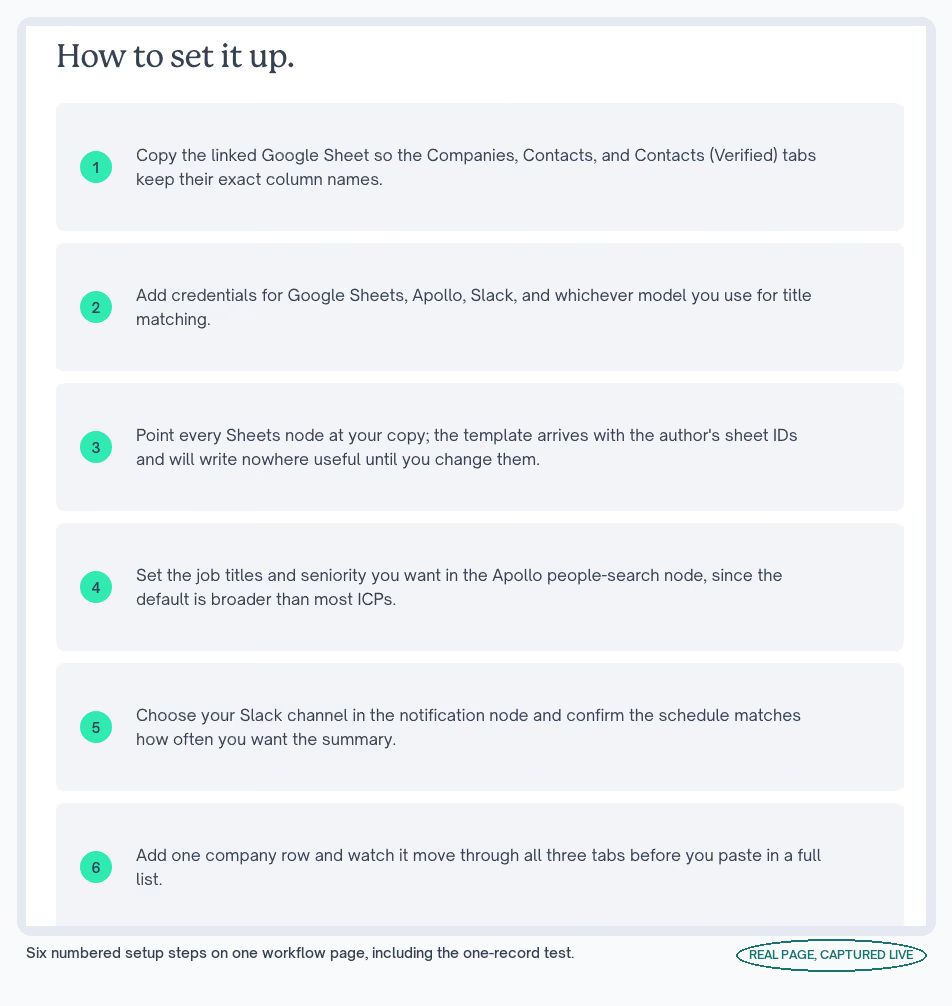
Uche Madu's template handles that with a second pair of eyes. You put company names into a Google Sheet. It looks up each company in Apollo, finds people with the job titles you asked for, and writes them into a second tab.
Then it stops. A rep reads that tab and copies the good ones into a third tab. Only that third tab is treated as approved.
That gap is the whole point. Without it, every wrong email address Apollo returns goes straight into whatever tool you use to send email.
Slack gets a weekly count of approved contacts, so nobody has to keep opening the sheet. I'd take two or three people per account: one job title misses the person who signs, and pulling the whole org chart spends money on people who'll never reply.
Where It Fails
- Apollo charges per contact it looks up. One large company list can use a month's allowance in a single run.
- It arrives pointing at the author's own spreadsheet. Change every Sheets step to yours first, or it writes somewhere you can't see.
- It matches job titles from your instructions. Write "VP and above" and mean it, or you'll get coordinators mixed in.
Sales Workflow Automation for Routing Inbound Leads
These four deal with people who came to you. Someone fills in a form, and the workflow decides who they are, how good a fit they look, and which rep hears about it.
They all write into your CRM, which is where I'd slow down. A wrong rule here changes records your reps open every day, and it can run for months before anyone connects the bad data back to the automation that caused it.
All four use HubSpot. The idea behind them works on any CRM that can send and receive data automatically, but the click-by-click setup won't transfer.
I'd work out the score thresholds using the lead scoring skill before trusting whatever the template came with.
4. Score Form Fills and Tell the Right Rep
Someone fills in your Typeform. Before doing anything else, the capture and scoring workflow searches HubSpot for that email address. If the person is already in there, it updates their record. If not, it creates one.
That check is the first thing I'd look at. Skip it and the same buyer ends up in your CRM twice, which is how reps end up calling someone a colleague spoke to last week.
Next it scores the lead. A short piece of code looks at whether the email is a company address or a personal one, and whether they typed in a company name.
Then it labels them cold, warm or hot, and posts the hot ones to Slack with the score attached.
The scoring is written in plain code you can open and read, so when a lead comes through marked hot, anyone can see why.
Where It Fails
- The scoring rules it comes with are generic. They'll label leads wrongly until you rewrite them for your business.
- It only matches on email address. The same person using a personal address still creates a second record.
- Alerting on every form fill kills the Slack channel. People mute it inside a week. Send the hot ones only.
5. Look a Company Up Before You Score It
Long forms lose you leads, but short forms don't tell you enough to score anyone. This one gets round that by looking the company up itself.
The qualification template takes the email address from the form and sends it to two data services. Hunter.io confirms the work email, and Abstract API returns details about the company behind the domain.
Only then does it score the lead and write it into HubSpot, with a Slack alert and a copy in a spreadsheet.
So your form can be three fields long and your standards can still be high. The information comes from a database instead of from the buyer's patience.
Both data services are named on the page, which means you can work out what a batch costs before you build anything.
Where It Fails
- Both services charge per lookup. A busy week of form fills costs more than a quiet one.
- They know less about small companies. Match rates drop for small firms and personal email addresses, which is exactly where you need the help.
- The scoring rules are the author's. Swap in your own definition of a good fit.
6. Stop a HubSpot Automation Emailing Your Whole Database
This one is a walkthrough of the settings inside HubSpot's own automation builder, and it exists because one setting catches people out badly.
In HubSpot, "enrollment" means which contacts get pulled into an automation. When you build a new one, HubSpot asks whether contacts who already match your rules should be pulled in too. Say yes and everyone in your database who fits gets the first email immediately.
The walkthrough covers seven steps, and steps two and three are where I'd slow down. They decide who enters and whether the same person can enter twice. The page calls re-entry the setting behind most duplicate emails anyone has ever received.
HubSpot keeps a record of what your automations did for 90 days, and lets you undo changes for 30 days. So you can walk back a bad edit for a month. After that, the trail is gone.
✗  Turn it on and let everyone who already matches get pulled in,
   because those contacts are sitting right there.

✓  Turn it on with that setting off, watch who gets pulled in over
   a day, then decide about everybody already in the database.
Where It Fails
- HubSpot automations need a paid plan. The free CRM stores contacts but can't run these.
- Records of what it did last only 90 days. An older problem may be impossible to trace.
- The wrong setting emails everyone at once. This is the one to check twice.
- HubSpot's AI can build it for you. A person still has to read the entry rules before it goes live.
7. Work the Leads That Scored Too Low
Leads that come in below your bar usually just sit there. Nobody decided to ignore them, but nobody picked them up either.
Every hour, the low-score routing workflow pulls the HubSpot contacts scoring under a number you choose. Before it does anything, it checks a Google Sheet to see whether that person has already been picked up.
Then it messages whoever owns the contact in Slack, creates a task against the record in HubSpot, sends a re-engagement email through Gmail, and writes down what it did.
The spreadsheet check is what stops it becoming unbearable, because an hourly job with no memory will alert the same rep about the same lead all day.
The HubSpot task matters too. Slack messages scroll away, while a task sits in the CRM until someone closes it.
Where It Fails
- Running hourly is a lot of requests to HubSpot. On a big database you may hit your daily limit, so check it first.
- "Under 50" only means something once your scoring is right. Until then you're sorting on a number that doesn't reflect anything.
- Everything sends from one Gmail account. If that account gets flagged as spam, the whole thing stops.
Sales Workflows for Outbound and Follow-Up Email
These three send email to people outside your company. You can't unsend it, so I'd read the first batch by hand before letting any of them run on a schedule.
I'd also check which email account each one sends from. A deliverability problem usually reaches you through a customer complaint before it shows up anywhere else.
8. Run Outbound From List to Sent Sequence
This is the biggest one here, and it does the whole outbound job in a single chain.
Ruben AI published this pipeline to go from an Apollo search all the way to a live campaign.
Apollo finds the contacts. Apify, a scraping service, pulls the company's website and the prospect's recent LinkedIn posts. Perplexity and Jina AI fetch any recent news.
Emailable then checks the email address exists. An AI step writes three emails per person from everything that was found, and pushes them into Instantly.ai, a cold email sending tool.
Airtable sits at the front of all this as a simple screen where a rep can approve or kill a lead without opening the automation itself.
If I stripped this back to one step, I'd keep the email check before the send. Send to a batch of dead addresses and your domain gets marked as spam, which takes weeks to recover from.
If the drafted emails need to sound like your company, the cold email skill helps.
Where It Fails
- You need five paid accounts before it sends anything. Apollo, Apify, Emailable, Instantly.ai and an AI model.
- It writes three emails per person. A list of 50 gives you 150 drafts to read before you trust it.
- Anyone with Airtable access can start a campaign. The approval screen is also the send button.
9. Email Trial Users on a Schedule
Most companies want to email trial users as the trial runs down. The usual blocker is that your product has to tell the email tool what the user is doing, and wiring that up is a development job.
The trial follow-up template skips that entirely. Once a day it reads your user database, works out how many days into the trial each person is, and sends the matching email through Gmail on day 3, day 7, day 13 and the last day.
It goes purely on dates, so it needs nothing from your product at all. That's the most common situation I've seen in a company's first year.
The date logic is a few lines of readable code, and it processes big user lists in batches so it doesn't choke.
Where It Fails
- It has no idea what the user did. Someone who already upgraded still gets the day-13 email about their trial ending.
- The trial days are written into the code. A 30-day trial means editing the logic itself.
- Everything sends through Gmail. A large list belongs on a proper email platform.
10. Onboard a New Customer Over Their First Week
A new customer signs up and then hears nothing for a week, which is where a lot of churn starts.
In the onboarding template, your signup form or your product tells the workflow that someone joined.
It first checks the email and name are there, so a blank submission never creates a junk contact. Then HubSpot gets the contact and the welcome email goes out.
After that it waits, on purpose. Setup documents go two hours later, a personal check-in after a day, and a week-one guide after three days. Each time, HubSpot updates how far along that customer is, and your team gets a Slack or Telegram message.
So somebody internal always knows which customers got stuck and where.
Where It Fails
- The pauses keep the workflow running for days. If lots of customers sign up at once, check your n8n setup can hold them all open.
- It sends from whichever email account you connect. Your onboarding deliverability depends on that one account.
- Two hours and three days are guesses. Test them against when your own users come back.
Sales Workflow Automation for Renewals and Failed Payments
These two work on money you've already won, and they're the two I get to last.
One warns you a customer is drifting away. The other gets a failed card payment through. The churn prevention skill covers the conversation you have once the alert arrives.
11. Spot the Quiet Account Before It Cancels
Accounts rarely announce that they're leaving. They go quiet, their support tickets get sharper, and usage drifts down, and any one of those on its own looks like nothing.
PolluqAI's template watches all three together. It pulls the deal from HubSpot, reads the support tickets attached to it, and picks up product usage from a Google Sheet.
An AI step reads the tone of the tickets, then weighs age, tone and usage against limits you set.
When an account crosses your line, the person who owns it gets an email with the numbers and a suggested next step.
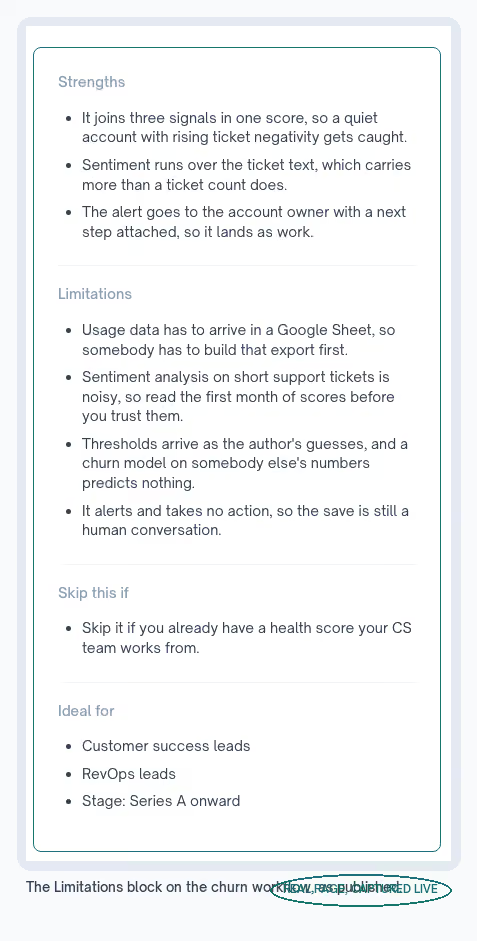
Combining the three is what makes it work, which is why I'd keep all three connected. A customer who has gone quiet but whose tickets are getting sharper never shows up in a usage report.
Where It Fails
- You have to build the usage export first. The workflow expects that data to already be in a Google Sheet.
- Reading tone from two-line support tickets is unreliable. Watch a month of scores before acting on them.
- The limits it comes with are guesses. Replace them with numbers from your own accounts.
- It only sends an alert. Saving the customer is still a phone call.
12. Recover Failed Card Payments in Stripe
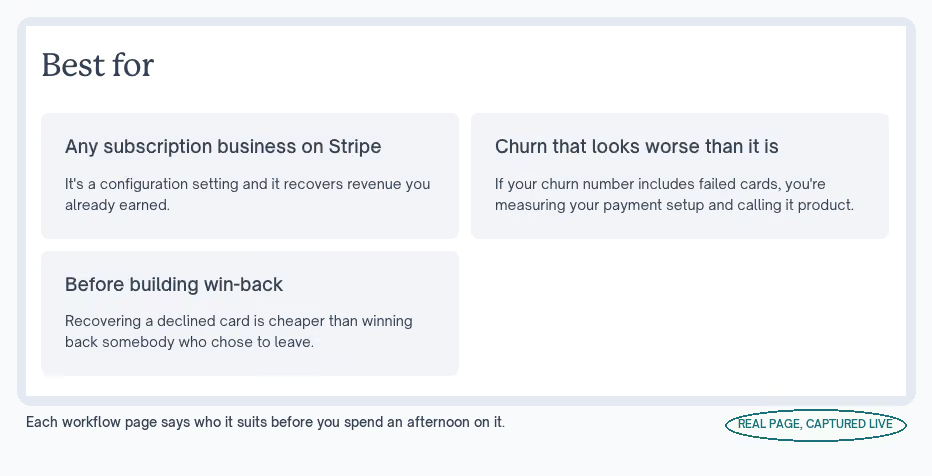
Some customers leave because they chose to. Others leave because a card expired and nobody chased it. The second kind is money you can get back, and most teams count it as churn without looking.
Stripe's recovery setting retries those payments automatically. Stripe picks the timing from its own data on when a similar payment tends to go through, so you're not guessing at a schedule.
You turn it on in the Dashboard under Billing, then Revenue recovery, then Retries.
There's nothing to build, and Stripe reports how much money the retries brought back. Nothing else here turns on this fast or pays back this quickly, and finance tends to notice it before sales does.
Where It Fails
- It only helps when the payment failed by accident. Someone who cancelled on purpose is a different problem, and no retry brings them back.
- Retrying too hard annoys customers. It also attracts attention from the card networks, so read the defaults before changing them.
- You still need the emails. Some cards can't be charged at all until the customer updates them.
- It's a Stripe Billing feature. If you bill somewhere else, you'd have to build the same thing there.
What Each Sales Workflow Costs to Run
Every file here is free to download, and none of them charges for the automation itself. What costs money is the accounts underneath, and for most of these it's an account a sales team already has.
I read that cost line before the description now, because it decides whether the rest of the page is relevant.
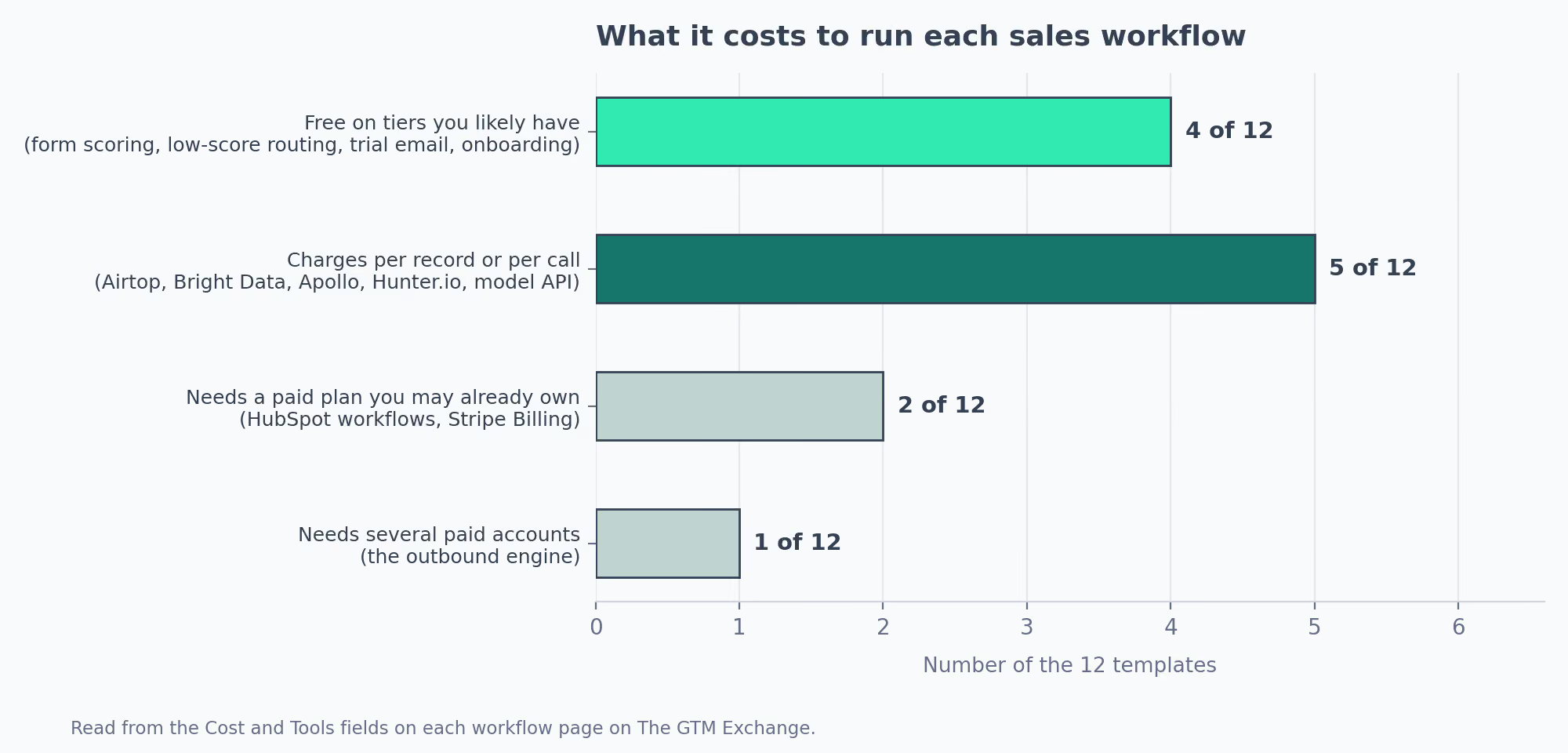
| Workflow | What it runs on | What it costs |
|---|---|---|
| Job-change tracker | Airtop, LinkedIn | Airtop charges per run |
| Hiring-signal search | Bright Data, Google Sheets | Charged per advert returned |
| Apollo contact list | Apollo, Google Sheets, Slack | Apollo charges per contact |
| Form scoring | Typeform, HubSpot, Slack | Free tiers cover it |
| Look-up before scoring | Hunter.io, Abstract API, HubSpot | Charged per lookup |
| HubSpot entry rules | HubSpot | Needs a paid HubSpot plan |
| Low-score routing | HubSpot, Slack, Gmail, Sheets | Free, watch the request limits |
| Outbound to Instantly.ai | Apollo, Apify, Emailable, Instantly.ai | Five paid accounts |
| Trial follow-up | MongoDB, Gmail | Free |
| Onboarding sequence | HubSpot, Slack | Free |
| Churn scoring | HubSpot, Sheets, AI model | Charged per AI call |
| Failed-payment recovery | Stripe Billing | Included if you use Stripe |
The pattern is easy enough to hold. Anything that goes out and fetches data from someone else's database charges you per record. Anything that only shuttles data between tools you already own doesn't.
Most of these lean on the same few tools:
| Tool | How many of the 12 use it | Free tier |
|---|---|---|
| HubSpot | 6 | Free CRM, but automations are paid |
| Google Sheets | 4 | Yes |
| Slack | 4 | Yes |
| Apollo | 2 | Some credits, then paid |
| Gmail | 2 | Yes |
| Typeform | 2 | Yes, with limits |
I'd price a single batch before pointing anything at a full database, because one large list can clear a month of credits in a single run.
The Settings I'd Change Before Switching One On
Six of these arrive with a number in them that somebody else picked, and a borrowed number is the easiest thing in an automation to leave alone.
| Workflow | The number it comes with | Where yours should come from |
|---|---|---|
| Form scoring | Generic scoring rules | Your last year of closed-won deals |
| Look-up before scoring | The author's fit criteria | Your written ideal customer profile |
| Low-score routing | A score under 50 | The score where your win rate jumps |
| Trial follow-up | Day-13 email, in the code | Your actual trial length |
| Onboarding sequence | Two hours, then three days | When your users really come back |
| Churn scoring | Age and tone weights | A month of your own scores |
The difference between a threshold and a guess is whether anyone checked:
✗  Anything above 50 is hot, because the code that came with the
   template says 50.

✓  Anything above 50 is hot, because that's where our win rate
   jumps in the last year of closed-won deals.
A borrowed number doesn't announce itself. It sends decent leads to a nurture list for a quarter, and your reports look normal the whole time, because the number of leads going through is exactly what you'd expect.
One contact is enough to catch it:
✗  Load it, point it at the full company list, and read the
   output tomorrow.

✓  Load it, add one company, watch that company move through
   every stage, then paste in the rest.
Four of the setup guides say the same thing in their own words. One company, or one job title in one city, before anything touches a full list.
Which Sales Workflow I'd Set Up First
I'd pick whichever job nobody is currently watching, and start where a mistake stays inside your own systems.
| If this is your week | Start with | Why |
|---|---|---|
| Target accounts, no contact names | Apollo contact list | A rep checks every contact before it goes anywhere |
| Form fills nobody is working | Form scoring | Catches duplicates, and only alerts on the good ones |
| You bill on subscriptions | Failed-payment recovery | Nothing to build, and finance can measure it |
| CRM job titles are out of date | Job-change tracker | It saves nothing, so you can try it today |
If your team has automated none of this, I'd start with failed-payment recovery. There's nothing to build, no customer gets an AI-written email on day one, and your finance report tells you within a month whether it worked.
Whichever one you pick, these are the five checks I'd run before switching it on:
- Read the limitations first, then the setup steps.
- Replace every default number the template came with.
- Send one contact through and read what comes out.
- Check which email account it sends and writes from.
- Price a full batch before you point it at your database.
Then I'd move up a group at a time, letting each one run clean before adding the next.
Every page in the library carries a short list of what breaks, written by whoever reviewed it. Reading that before the setup steps saves you an afternoon on something that was never going to fit your stack.
One caveat on all 12: I haven't run them end to end on a live pipeline. Everything above comes from a page you can open and read yourself, and I'd assume the published warnings aren't the full list.